Leaf

macOS · Windows · version 0.2.0

Every PDF tool,
in one small app

Leaf reads PDFs and edits them properly: comments, text and pictures changed in place, forms, signatures, pages, passwords, redaction, OCR and compare. And it does all of it itself, with its own PDF engine.

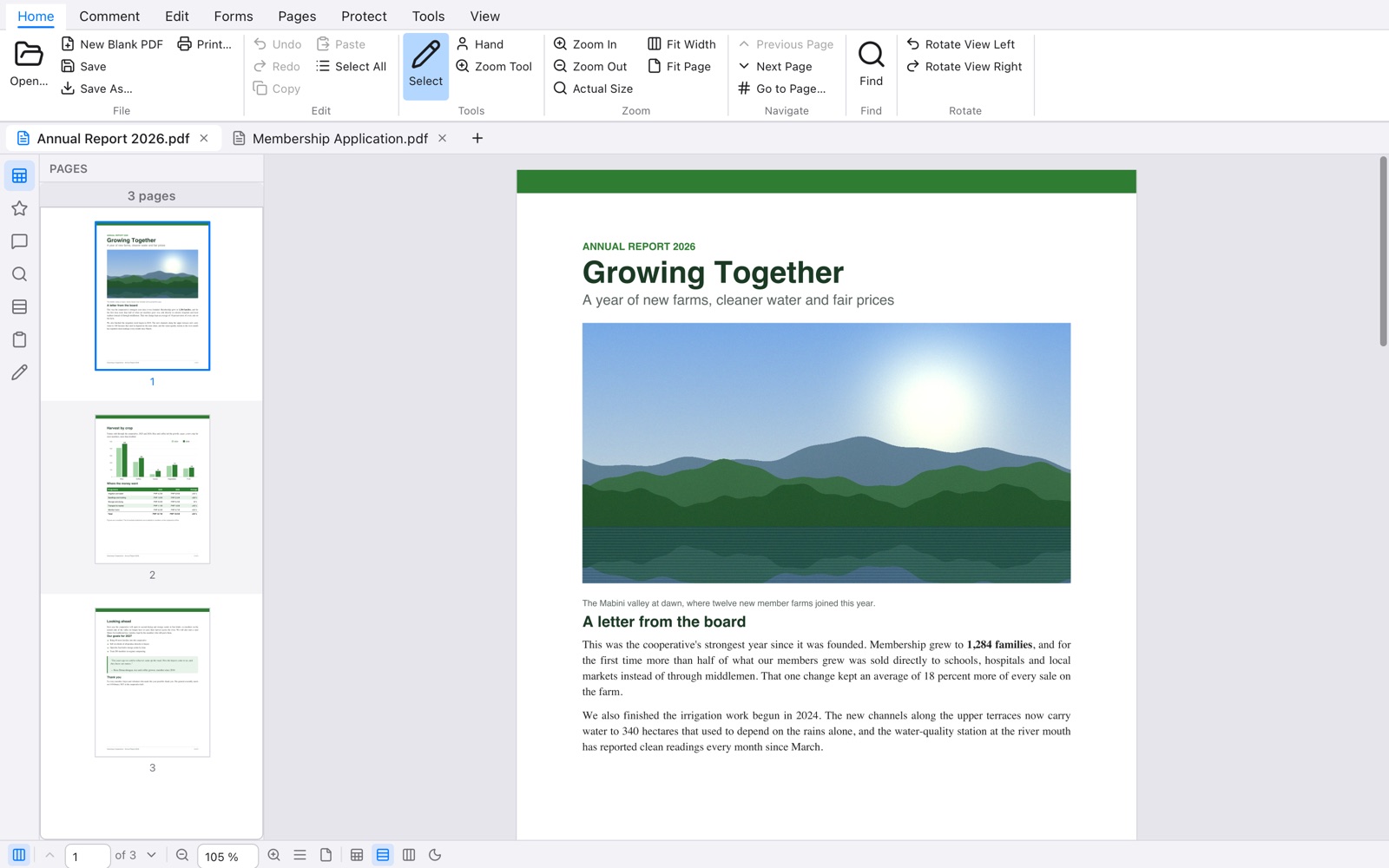
Leaf with a three-page annual report open, page thumbnails on the left and a second document in another tab

Comment on anything

Highlight, underline, strike out and insert text by dragging over it. Add sticky notes, text boxes and callouts, draw lines, arrows, rectangles, ellipses, polygons and clouds, write by hand, and stamp a page Approved. Every comment can be answered.

  • A comments list with replies and status, one click to go to each
  • Color, opacity and text in the properties panel
  • Import and export comments, or flatten them into the page
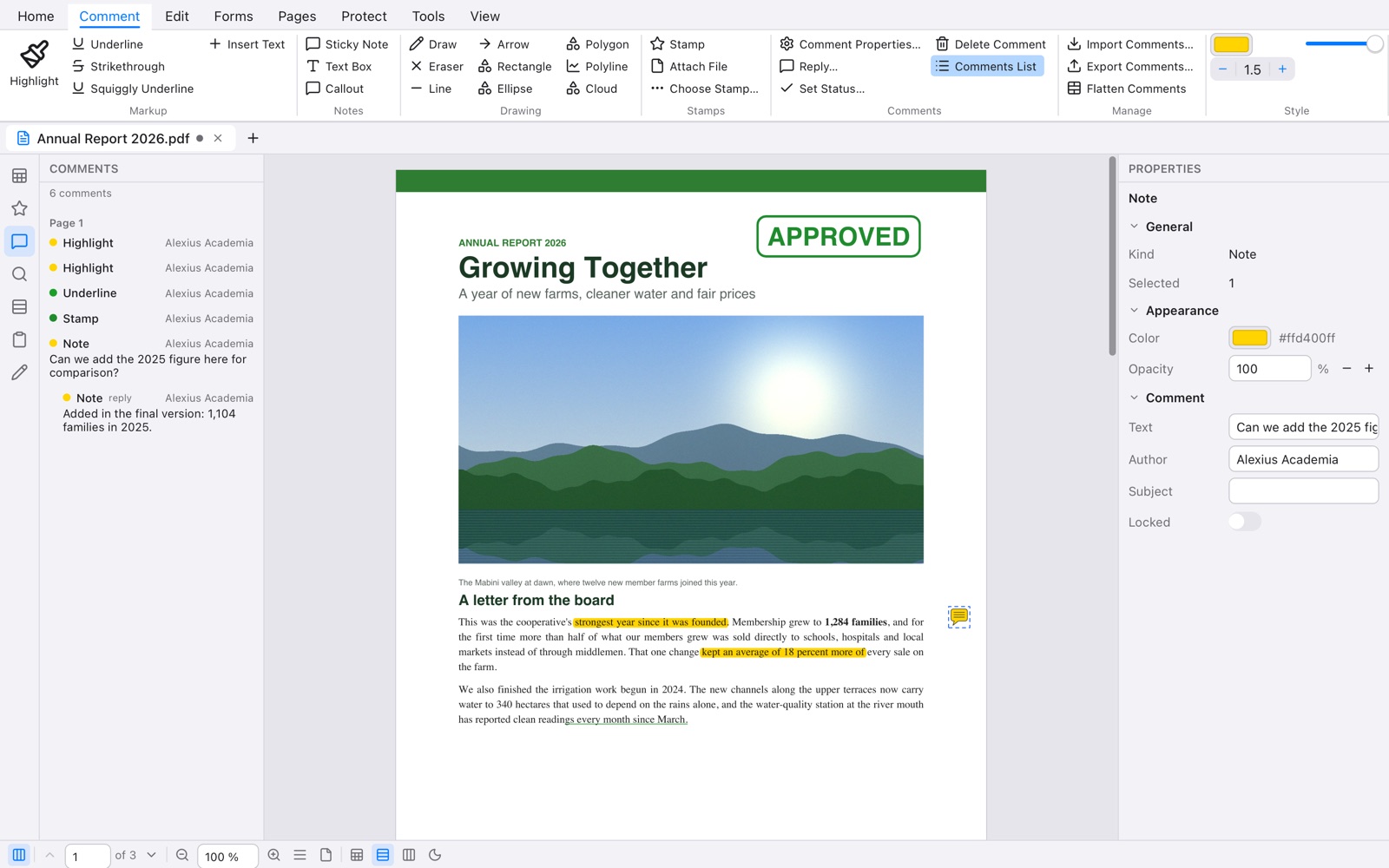
Two highlights, an underline, an Approved stamp and a sticky note with a reply, listed in the comments panel, with the note's properties on the right

Edit the PDF itself

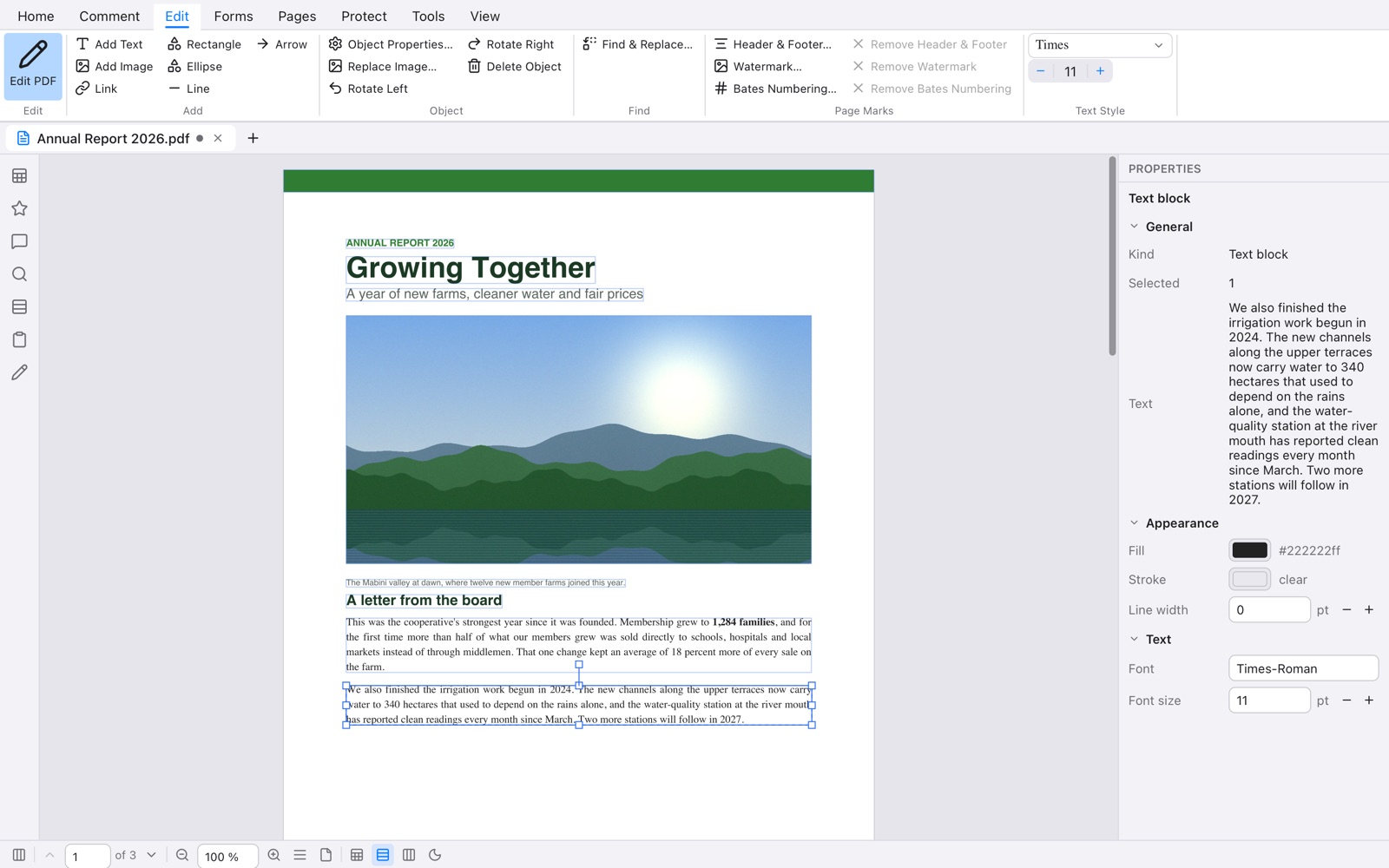
Double-click a paragraph and type. Leaf reflows the text inside its block and keeps the document's own font, so the page still looks like it did. Move, resize and rotate text, pictures and shapes, replace a picture, or add new ones.

  • Add text, images, shapes and links
  • Find and replace across the document
  • Headers and footers, watermarks and Bates numbers
Edit PDF mode: a paragraph with an added sentence, reflowed in Times-Roman and selected, its text and font in the properties panel

Forms, filled and signed

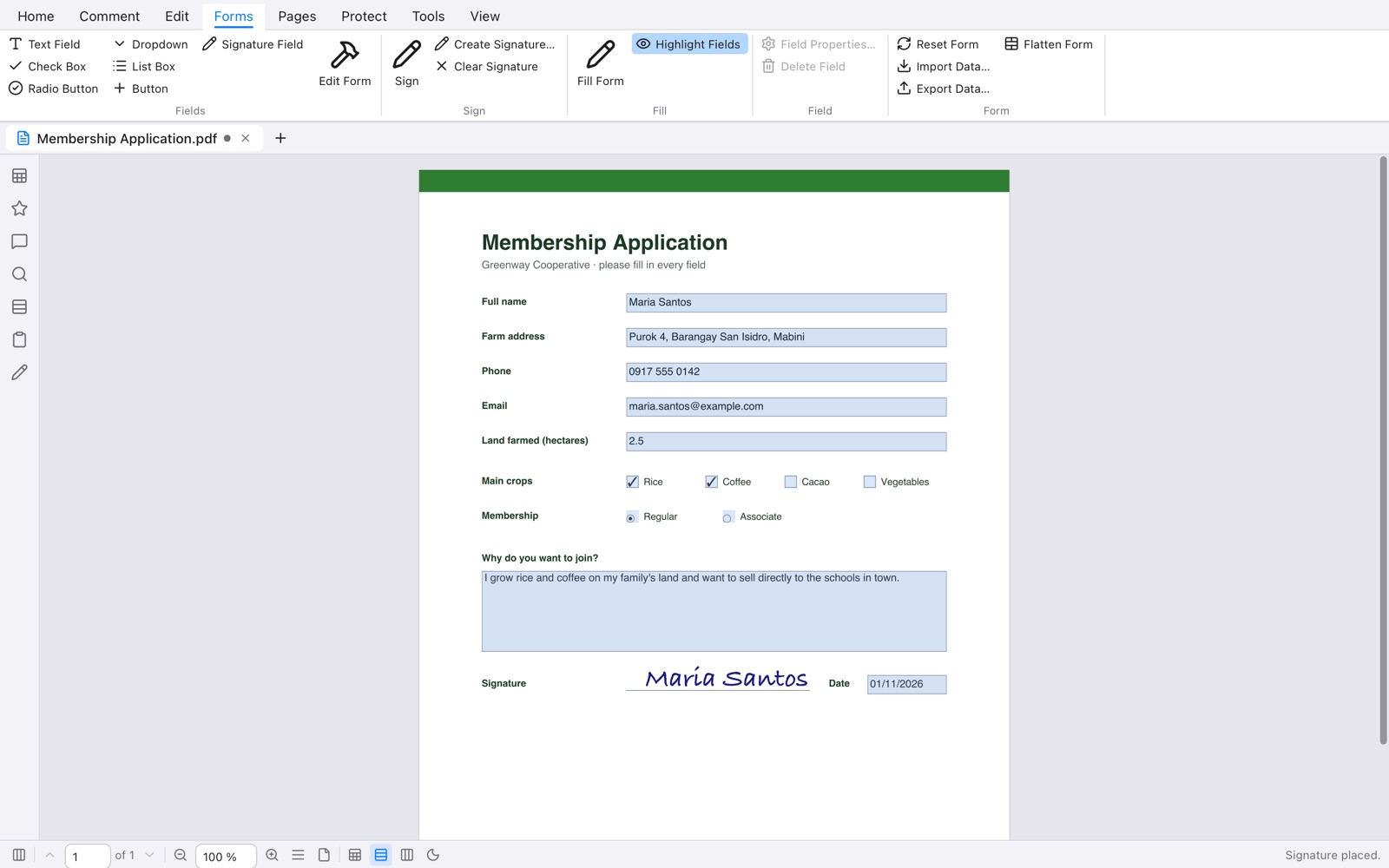
Click a field and type, Tab to the next, tick the boxes. Draw your own fields when a form has none. Sign with your mouse or trackpad, your typed name, or a picture of your signature, and keep it for next time.

  • Text fields, check boxes, radio buttons, lists, dropdowns, buttons and signature fields
  • Number, date, percent and total formatting in forms works, without running JavaScript
  • Import and export form data, reset, or flatten
A membership application filled in, two crops ticked, a radio button chosen and a typed signature placed on the signature line

See what changed

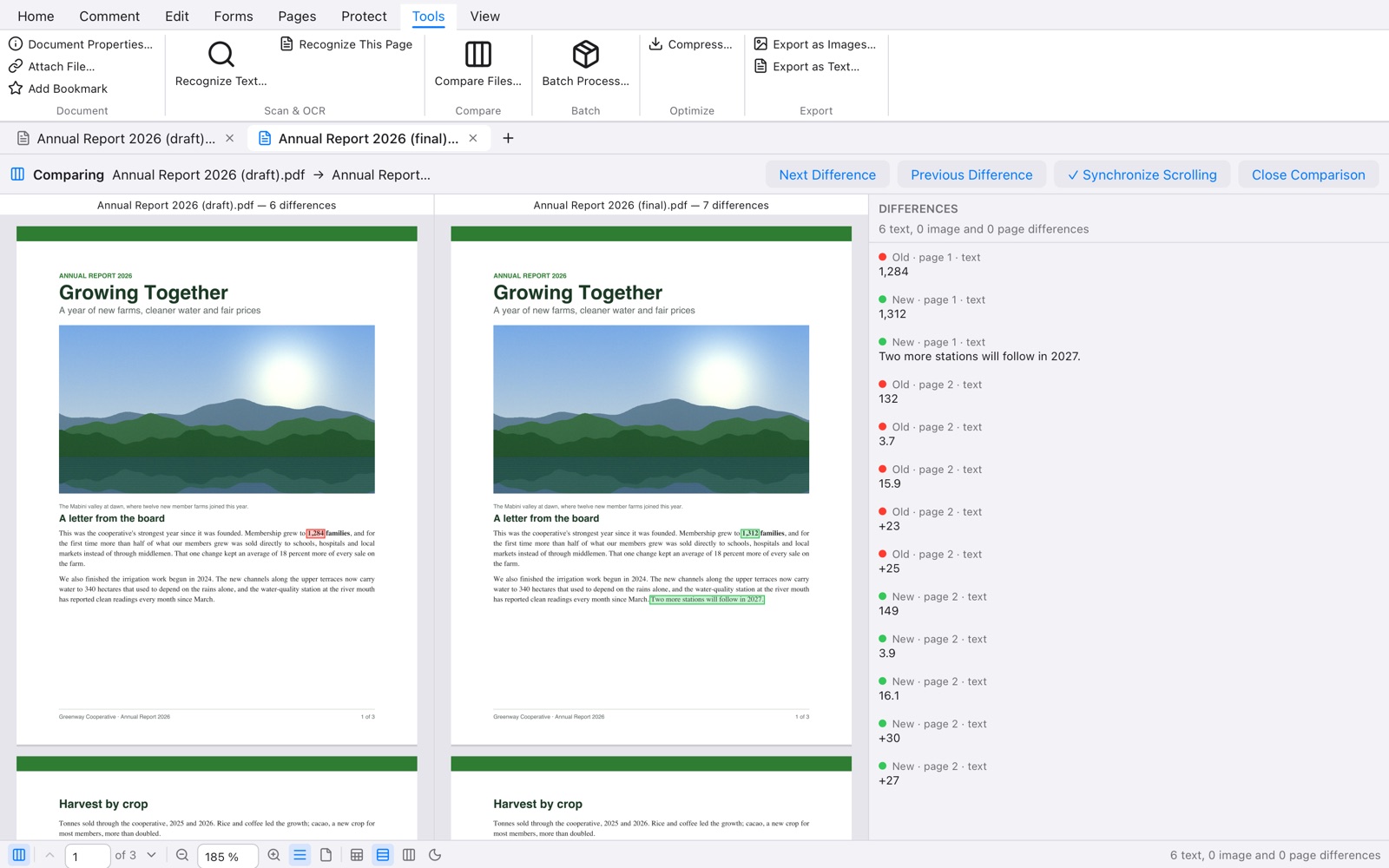
Compare two documents, or two versions of one, side by side. Changed words are boxed in red and green, changed picture areas too, the pages scroll together, and every difference is in a list.

  • Word by word, including a word whose color changed
  • Next and previous difference
A draft and a final version of the report side by side, the changed membership figure and a new sentence boxed, the list of differences on the right

Scans you can search

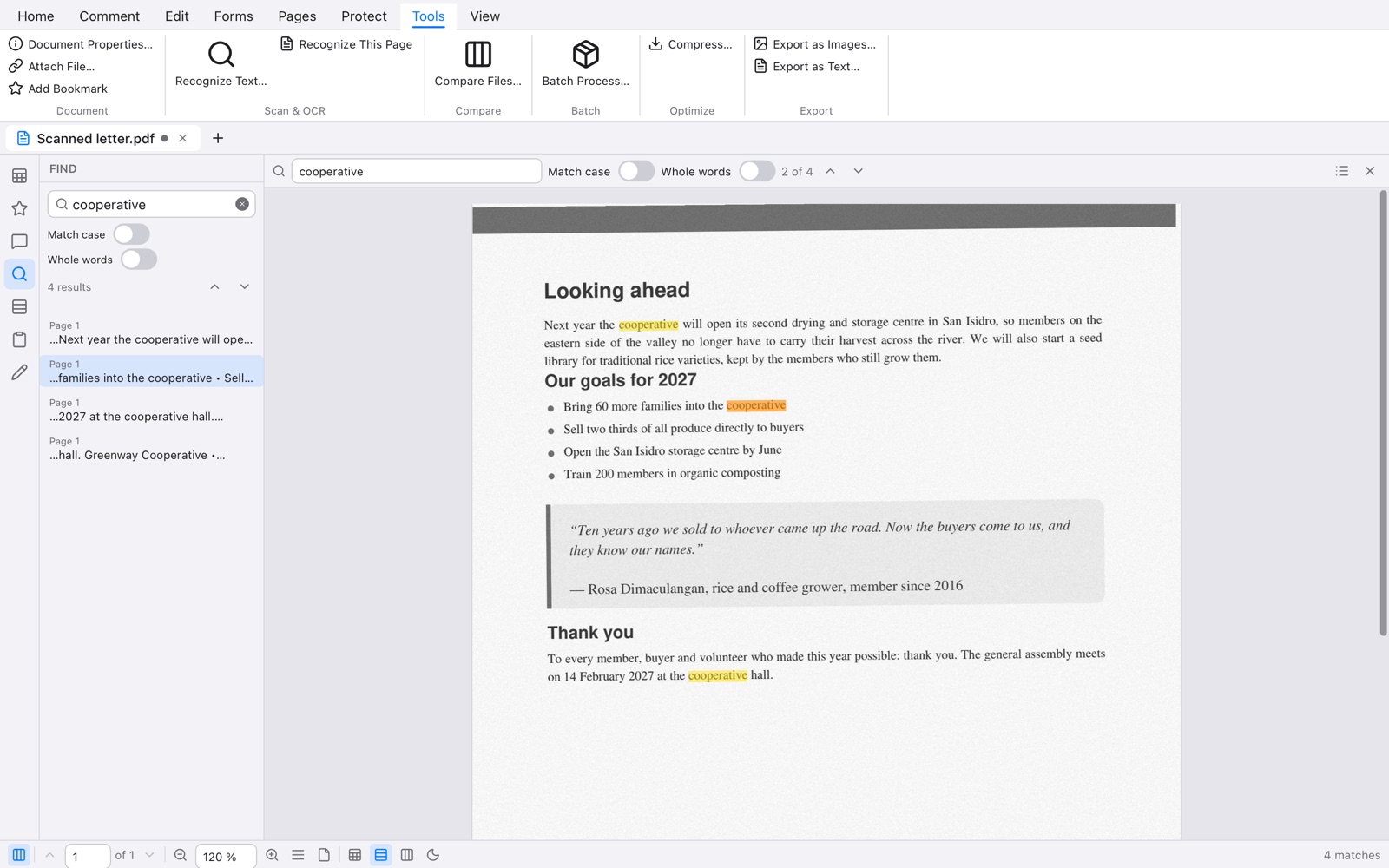
Leaf recognizes the text in scanned pages and adds it under the picture, so you can find, select and copy it. The OCR is Leaf's own too: no system service, nothing sent anywhere. It reads English.

  • The whole document or just this page, in the background
  • Pages that already have text are left alone
  • Batch OCR a whole folder
A scanned page after OCR, with four matches for the word cooperative highlighted and listed in the find panel

Made for reading

One page, continuous, two pages side by side or with a cover page, and full-screen presentation. Night mode turns pages dark for reading late, and Leaf follows your system's dark mode.

  • Thumbnails, bookmarks, layers, attachments and find, in the sidebar
  • Several documents in tabs
  • A command palette (⌘K) for every command, page and recent file
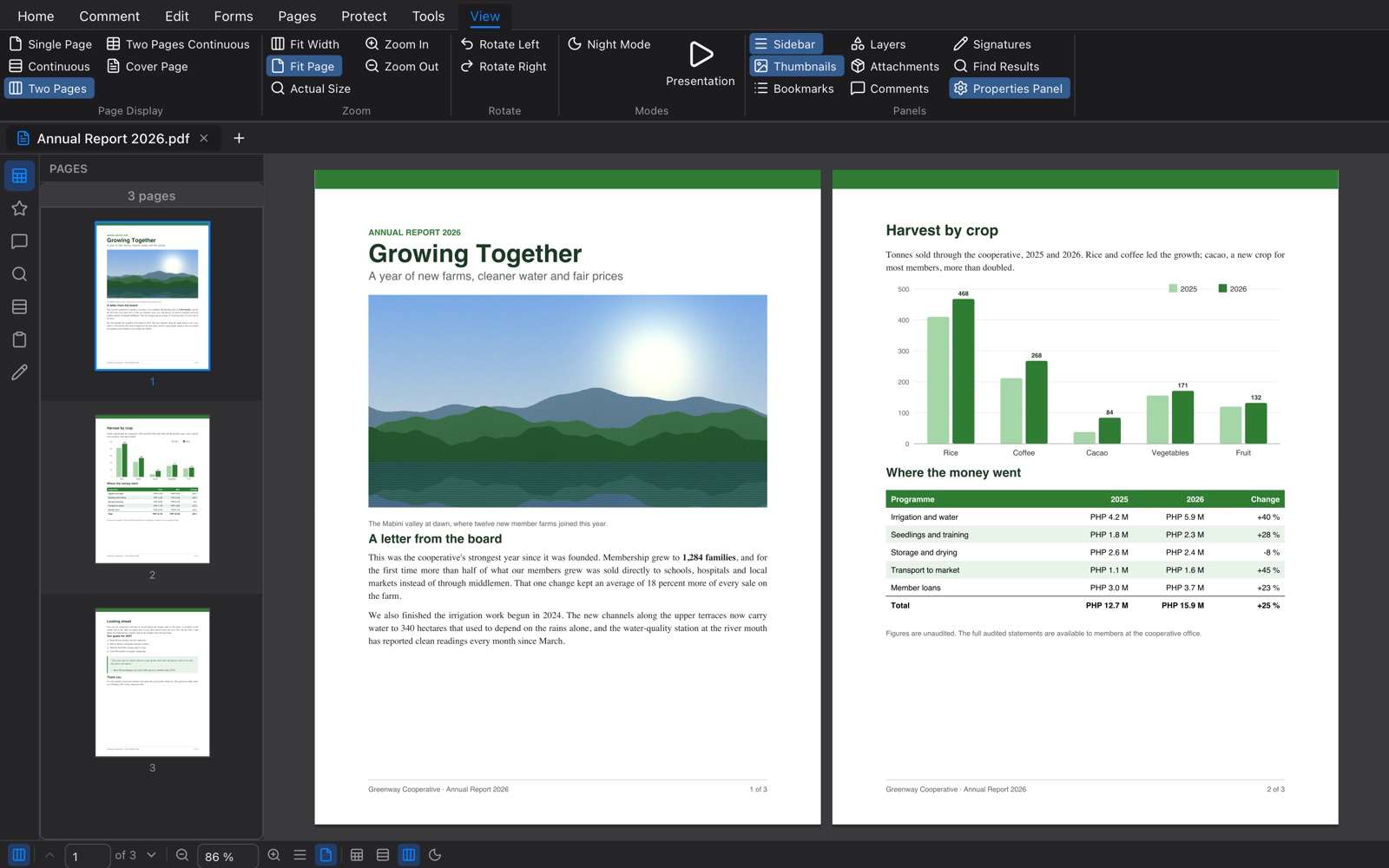
Leaf in dark mode showing two pages side by side: the cover with a landscape photo and a page with a bar chart and a table

Pages

Organize, insert, delete, extract, rotate and crop pages, merge files, split one up, and set page labels.

Passwords

Lock a document with AES-256 and choose what others may do: print, copy, change, fill in.

True redaction

Redacted text, pictures and drawings are taken out of the file, not just covered with a black box.

Batch

A folder or a list of files at once: OCR, compress, merge, convert to images, protect or flatten.

Compress and export

Make a file smaller, or save its pages as images or its text as a text file.

Undo everything

Every change can be undone and redone, and Leaf asks before closing anything unsaved.

Its own PDF engine, written in Tessel

Most PDF apps are built on someone else's PDF library. Leaf does every part itself: reading the file, drawing the pages, the fonts, the pictures, the text you search and copy, and writing it all back. Every line is written in Tessel, a programming language for native desktop apps: about 90,000 lines and no outside libraries.

Reading

Damaged files, encrypted files (RC4 and AES), object and cross-reference streams.

Fonts

Type 1, TrueType, OpenType and CFF, Type 3, and Chinese, Japanese and Korean fonts.

Pictures

Its own JPEG, JPEG 2000, JBIG2 and CCITT fax decoders, and the color spaces print shops use.

Writing

Quick incremental saves, full rewrites that drop what's no longer used, and encryption.

Tested against nearly a thousand real-world PDFs, page by page, against other readers.

Download

macOS

Apple silicon · macOS 11 or later · disk image

Not released yet

Signed and notarized by Apple. Open the disk image and drag Leaf to Applications.

Windows

Windows 10 and 11, 64-bit · installer

Not released yet

Early preview, not yet tested on Windows. The installer isn't signed yet, so Windows may warn about it the first time: choose More info ▸ Run anyway.

Downloads appear here when a release is out.

Once installed, Leaf keeps itself up to date: new versions download in the background and go in when you quit. Leaf 0.1.0 doesn't update itself, so install 0.2.0 or later from here once.